Research in engineering and design takes many forms, but much of it involves working with data and models. We may analyse measurements, explore the behaviour of a simulation, or compare design alternatives. In each case, we need a way to turn the question we are studying into a sequence of operations and to understand how those operations lead to a result.
As a study grows, we may need to repeat the same analysis for new datasets, change a model parameter, or check how a design performs under different conditions. Programming lets us describe these procedures explicitly and have a computer carry them out. The code also provides a record of the steps taken, which we can inspect, revise, and share.
Python is a high-level programming language used for scientific computing, data analysis, visualization, and many other tasks. Its readable syntax and scientific libraries make it useful for this work. This course introduces the programming ideas needed to use these tools and to build small programs for research.
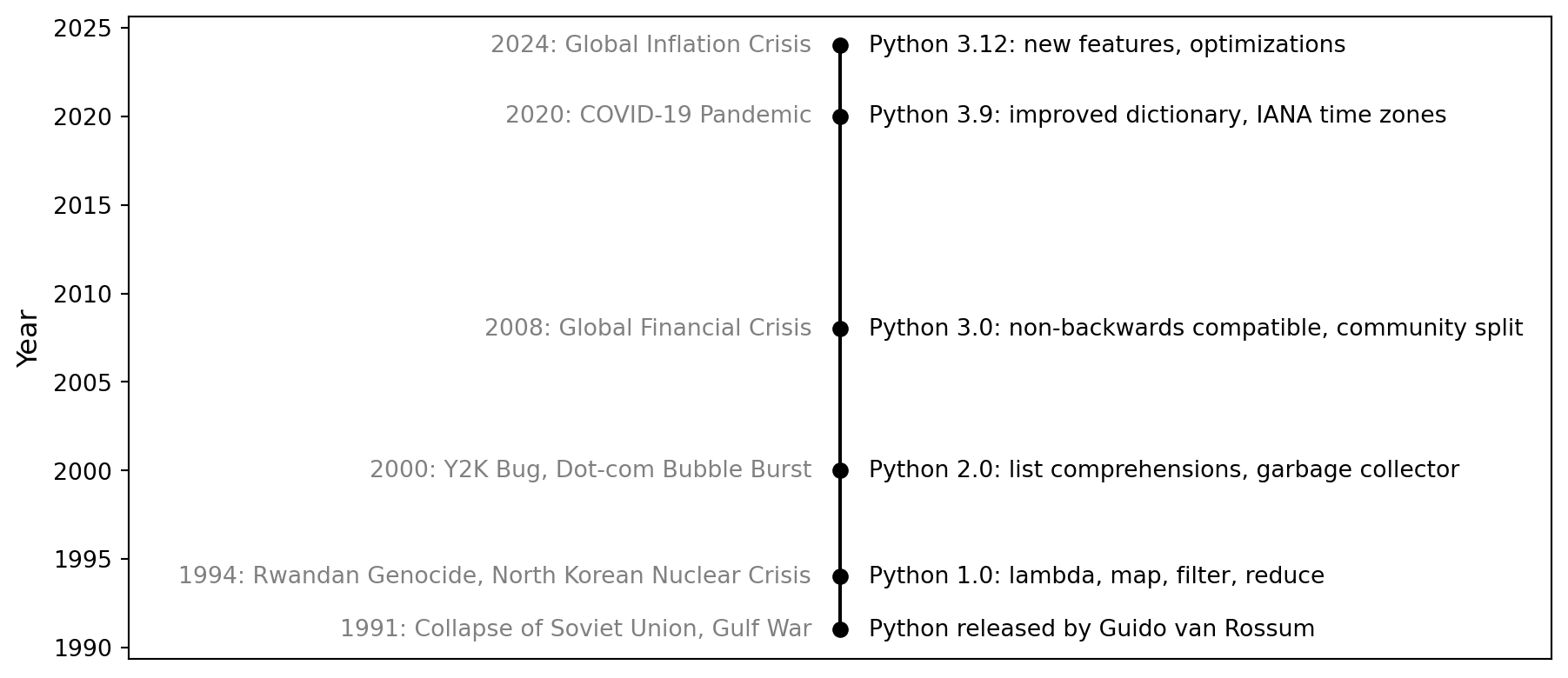
Guido van Rossum created Python, and its first public release appeared in 1991. The timeline below shows selected milestones in its development.
Show the code
import matplotlib.pyplot as pltyears = [1991, 1994, 2000, 2008, 2020, 2023, 2024, 2025, 2026]python_events = ["First public release of Python","Python 1.0: lambda, map, filter, reduce","Python 2.0: list comprehensions, garbage collector","Python 3.0: a major revision of the language","Python 3.9: dictionary updates, IANA time zones","Python 3.12: new features and optimizations","Python 3.13: improved interactive interpreter","Python 3.14: supported free-threading and template strings","Python 3.15.0rc2: release candidate (preview)",]# Even spacing keeps the recent annual milestones readable.positions =list(range(len(years)))fig, ax = plt.subplots(figsize=(10, 5.5))ax.plot([0.13] *len(years), positions, color="0.75", linewidth=2, zorder=1)for position, year, event inzip(positions, years, python_events): color ="#a45c00"if year ==2026else"#234f70" ax.scatter(0.13, position, s=65, edgecolor=color, facecolor="white"if year ==2026else color, zorder=2) ax.text(0.08, position, str(year), ha="right", va="center", fontsize=11, fontweight="bold", color=color) ax.text(0.18, position, event, va="center", fontsize=10.5, color=color)ax.set_xlim(0, 1)ax.set_ylim(len(years) -0.5, -0.5)ax.axis("off")plt.tight_layout()plt.show()
Selected milestones in Python’s history, 1991–2026. Events are evenly spaced; the 2026 entry is a preview release.
Timeline checked on 18 September 2026. The recent entries are based on the official release notes for Python 3.13 (2024), Python 3.14 (2025), and Python 3.15.0rc2 (1 September 2026). Python 3.14 is the current stable feature series; 3.15 is still a preview at this date.
1.1 Programming
A program is a set of instructions that a computer follows to perform a task. Programming means expressing those instructions in a language the computer can execute.
High-level languages such as Python let us write calculations and algorithms without managing the machine’s low-level instructions directly. Python uses an interpreter to execute the code.
A Python script is a text file with the extension .py. In a prepared Python environment, python filename.py runs that script from the command line. Running Python locally requires Python and any libraries used by the program to be installed. In this course, we will mainly work in Jupyter notebooks.
1.2 Jupyter Notebook
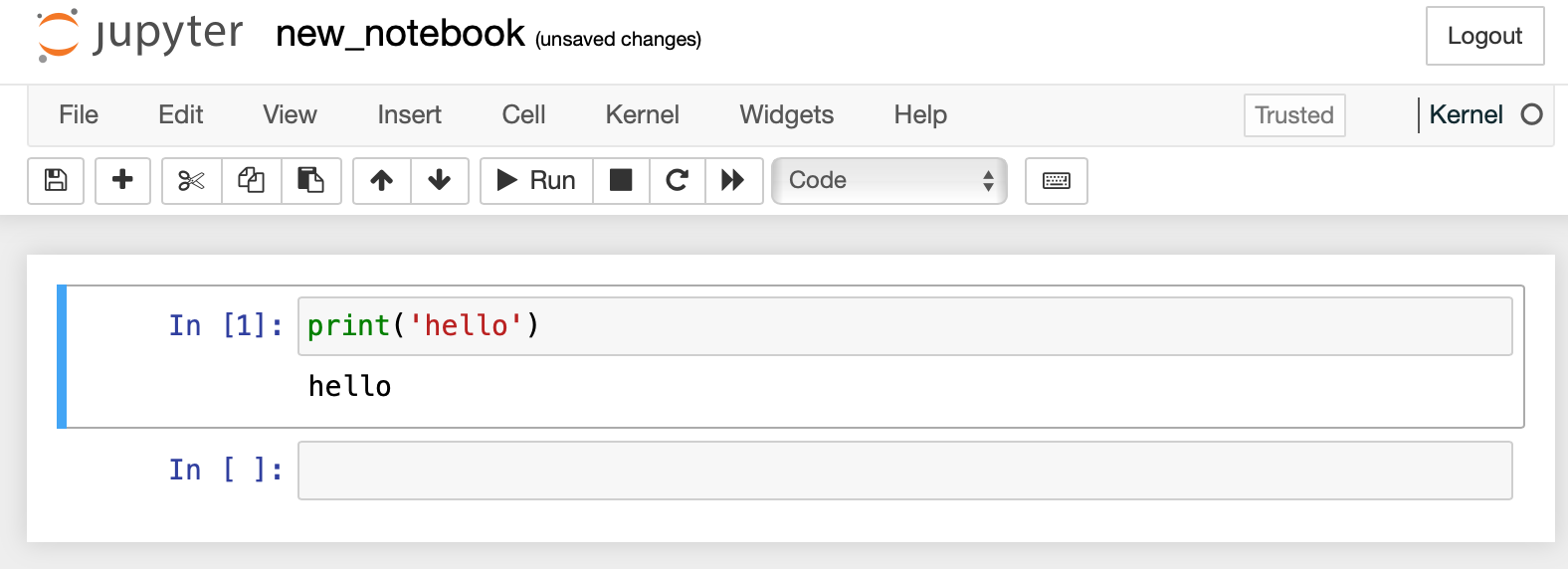
A Jupyter notebook combines code, its output, explanatory text, and figures in one .ipynb file. Code cells contain Python instructions; Markdown cells contain the explanations. Working in cells lets us develop and check a program in small steps.
Jupyter Notebook interface
1.2.1 The Python kernel
The notebook interface sends code to a kernel, a separate process that executes it using Python. The kernel returns results and keeps variables in memory between cell executions. Restarting the kernel clears those variables.
Run the code cells from top to bottom so that each cell has the variables created by earlier cells. After restarting the kernel, run the earlier cells again before continuing.
1.3 Anatomy of a Python Program
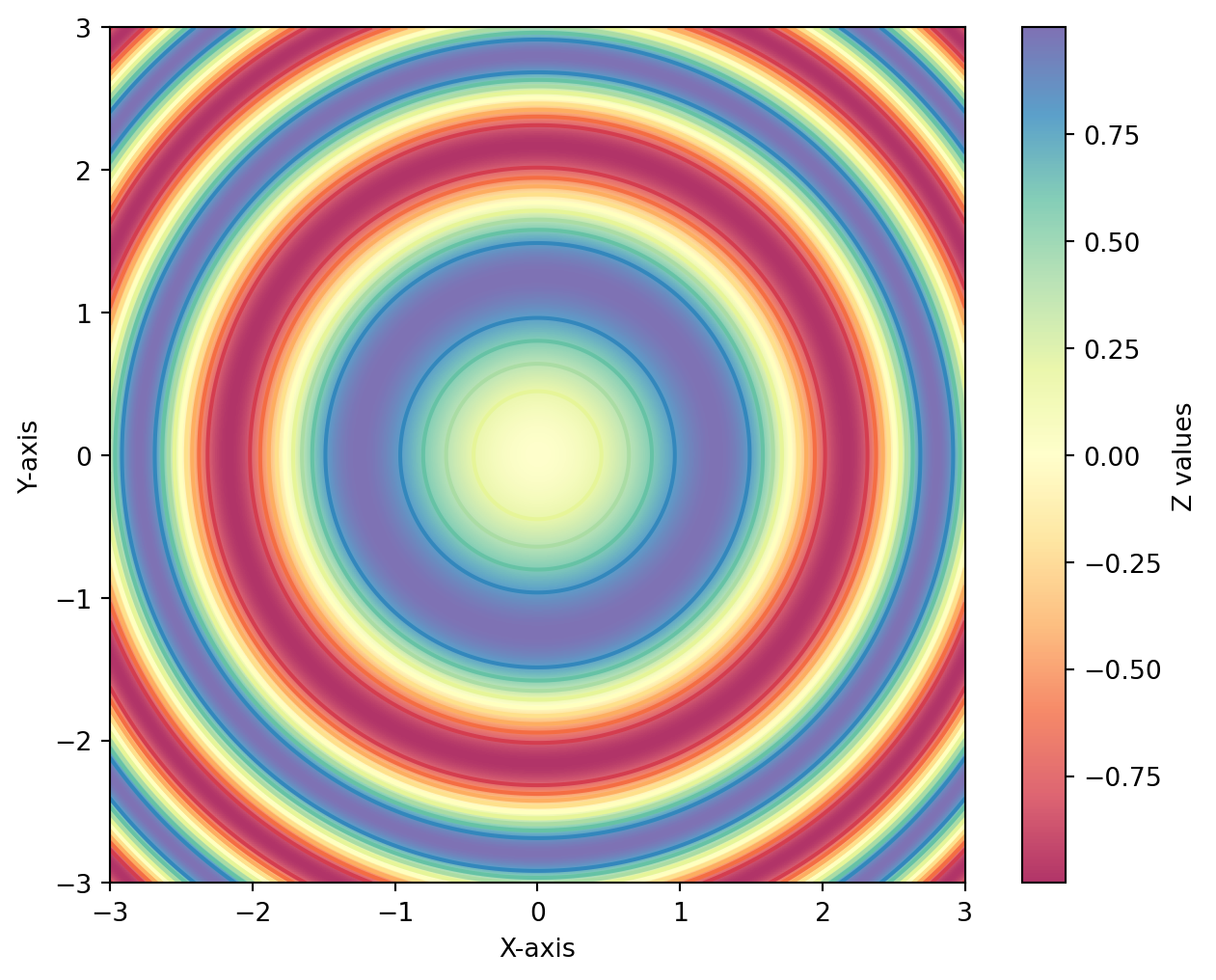
The following example uses NumPy and Matplotlib to plot the function \(z = \sin(x^2 + y^2)\). It shows the main steps in a scientific Python program: import libraries, prepare data, perform a calculation, and visualize the result.
We will study these libraries in later chapters. For now, focus on how the steps fit together.
Show the code
import numpy as npimport matplotlib.pyplot as plt# Create a grid of pointsx = np.linspace(-3, 3, 400)y = np.linspace(-3, 3, 400)X, Y = np.meshgrid(x, y)# Define a function for the contour plotZ = np.sin(X**2+ Y**2)# Create the figureplt.figure(figsize=(8, 6))# Display the image with a continuous color representationim = plt.imshow(Z, extent=[-3, 3, -3, 3], origin='lower', cmap='Spectral', alpha=0.8)# Create the contour plotcontour = plt.contour(X, Y, Z, levels=10, cmap='Spectral')# Add a colorbar for referencecbar = plt.colorbar(im, label='Z values')# Set the axis labelsplt.xlabel('X-axis')plt.ylabel('Y-axis')# Show the plotplt.show()
Contour plot on a Cartesian grid
The code follows these steps:
Import libraries.numpy provides numerical operations, and matplotlib.pyplot provides plotting functions. The short names np and plt are aliases used in the rest of the code.
Create coordinates.np.linspace(-3, 3, 400) creates 400 evenly spaced values. np.meshgrid(x, y) combines the two coordinate arrays into a grid.
Evaluate the function.Z = np.sin(X**2 + Y**2) computes a value at every grid point. In Python, ** means exponentiation.
Visualize the values.plt.imshow displays the values as colours, and plt.contour overlays lines of constant value. Both use the Spectral colour map. plt.colorbar(im, label='Z values') explains the image colours.
Label and display the figure.plt.xlabel and plt.ylabel label the axes. plt.show() displays the completed plot.
1.4 Coding Conventions
Consistent formatting makes programs easier to read and maintain. PEP 8 is Python’s style guide. The following conventions are useful throughout this course:
Use four spaces for each indentation level. Avoid mixing tabs and spaces; indentation defines blocks of Python code.
Use descriptive names for variables and functions, with lowercase words separated by underscores. Short mathematical names such as x are appropriate when their meaning is clear.
Use capitalized words for class names.
Single and double quotes are both valid for strings. Choose a consistent style; use the other quote character when that makes a string easier to read.
Use spaces around operators and after commas to make expressions readable.
Write comments that explain the purpose of the code. Keep them consistent with what the code actually does.
Use parentheses when they clarify the order of operations.